
How to use TinyTask
How to Use TinyTask: Record, Stop, Save and Replay
This beginner guide explains the basic TinyTask workflow: download the app, record mouse and keyboard actions, stop or pause playback safely, save a macro, replay it, and use loop automation only after the macro is tested.
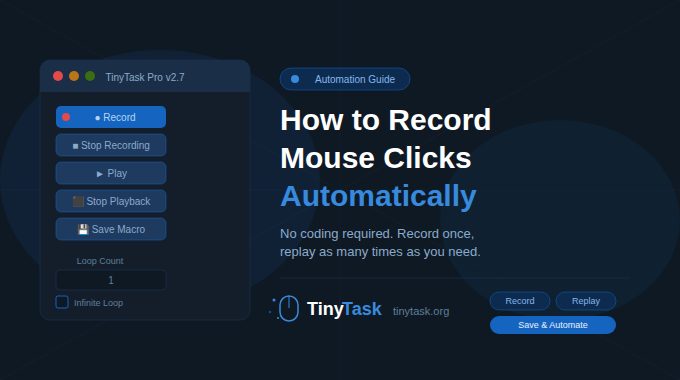
Beginner workflow
Quick TinyTask workflow from recording to replay
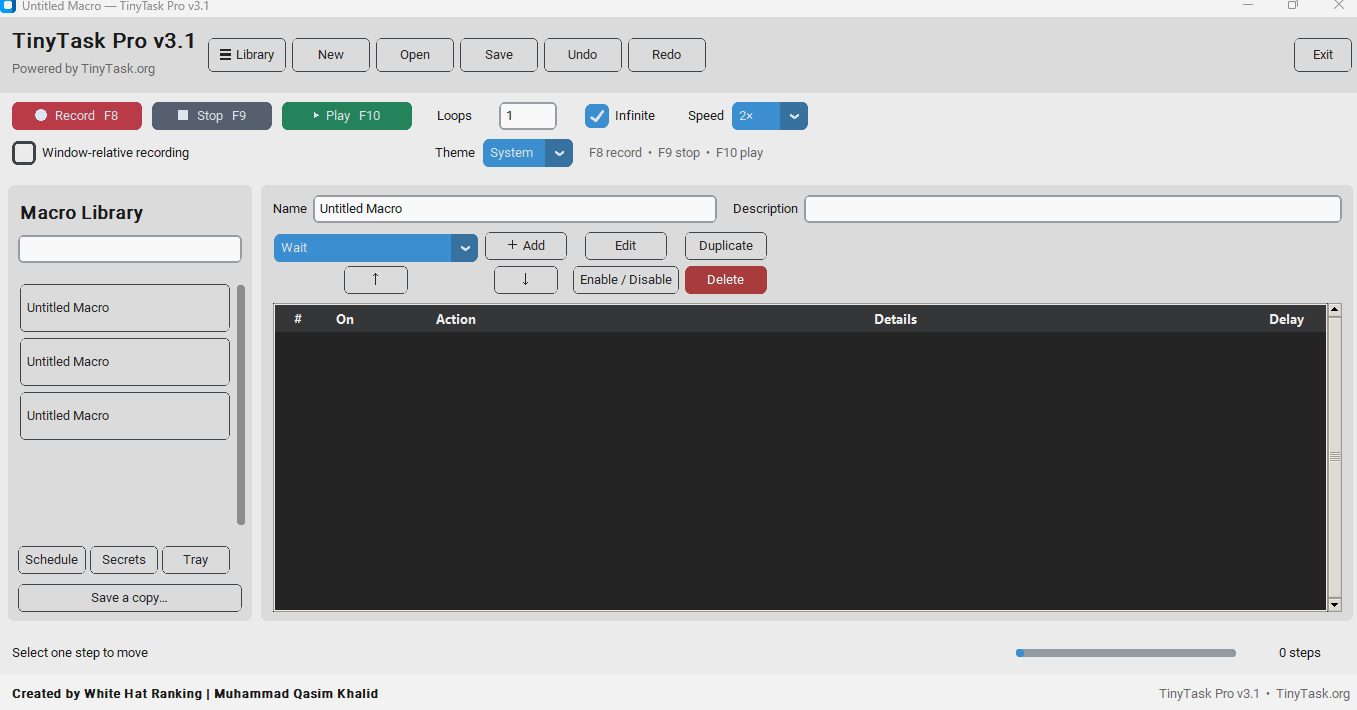 Download and Open TinyTask
Start from the official download guide, choose the correct file format and open TinyTask Pro on Windows.
 Record Mouse and Keyboard Actions
Press record, complete the repeatable workflow once, then stop recording before extra actions get captured.
 Use Hotkeys Faster
Use record, stop and play hotkeys after you understand the basic workflow and know which window should stay active.
 Replay or Loop the Macro
Play the saved macro once, test timing, then use loop playback only when the repeated task is predictable.
 Save and Reuse Macros
Save useful workflows so you can load them again later instead of recording the same task from scratch.
 Fix Common Mistakes
If recording or playback behaves incorrectly, check focus, timing, DPI scaling and permissions before re-recording.
Step by step
Record a TinyTask macro without capturing mistakes
- Prepare the window first. Open the app, browser tab, spreadsheet or form where the repeated action will happen.
- Press Record. Complete the workflow once at a steady pace so TinyTask can capture the mouse and keyboard sequence.
- Stop recording immediately. Stop before moving into unrelated windows or extra clicks.
- Play once for testing. Run the macro one time and watch the screen closely before using loop playback.
- Save the macro. Keep a named macro file for workflows you will reuse.
how to use TinyTask Pro
Supporting search termshow to stop TinyTask, how to pause TinyTask, how to record TinyTask, TinyTask record hotkey, TinyTask playback, save TinyTask macro and loop automation.
Stop and pause help
How to stop or pause TinyTask playback safely
If TinyTask playback is running, use the stop control or the configured stop hotkey before changing windows. Do not move the mouse into a different app while a macro is still active, because playback may continue against the wrong target.
If a macro keeps running, a loop was likely enabled or the wrong window stayed active during playback. Use the detailed runaway-loop guide for recovery steps.
Usage FAQ
TinyTask beginner questions
How do I use TinyTask for the first time?
Open TinyTask Pro, press record, perform the repeated action once, stop recording, test playback once, then save the macro if it behaves correctly.
How do I stop TinyTask playback?
Use the stop button or stop hotkey while playback is running. If loop playback was enabled, stop it before moving to another app or window.
Can I pause TinyTask?
For most workflows, stop the playback, fix the screen position or active window, then replay the macro. For exact shortcut behavior, use the hotkeys reference.
When should I use loop automation?
Use loop automation only after the macro has been tested once and the target screen is predictable. Loops are useful for repeated clicks, forms, checks and data-entry workflows.